
How to Create a Cinematic Mysterious Warrior Video from a Thumbnail
How to Create a Cinematic Mysterious Warrior Video from a Thumbnail
Introduction
Have you ever wondered how to turn a dramatic thumbnail into an engaging cinematic video? With modern AI video tools and simple editing techniques, you can transform a single image into a visually appealing video featuring cinematic lighting, atmospheric effects, and smooth camera movements.
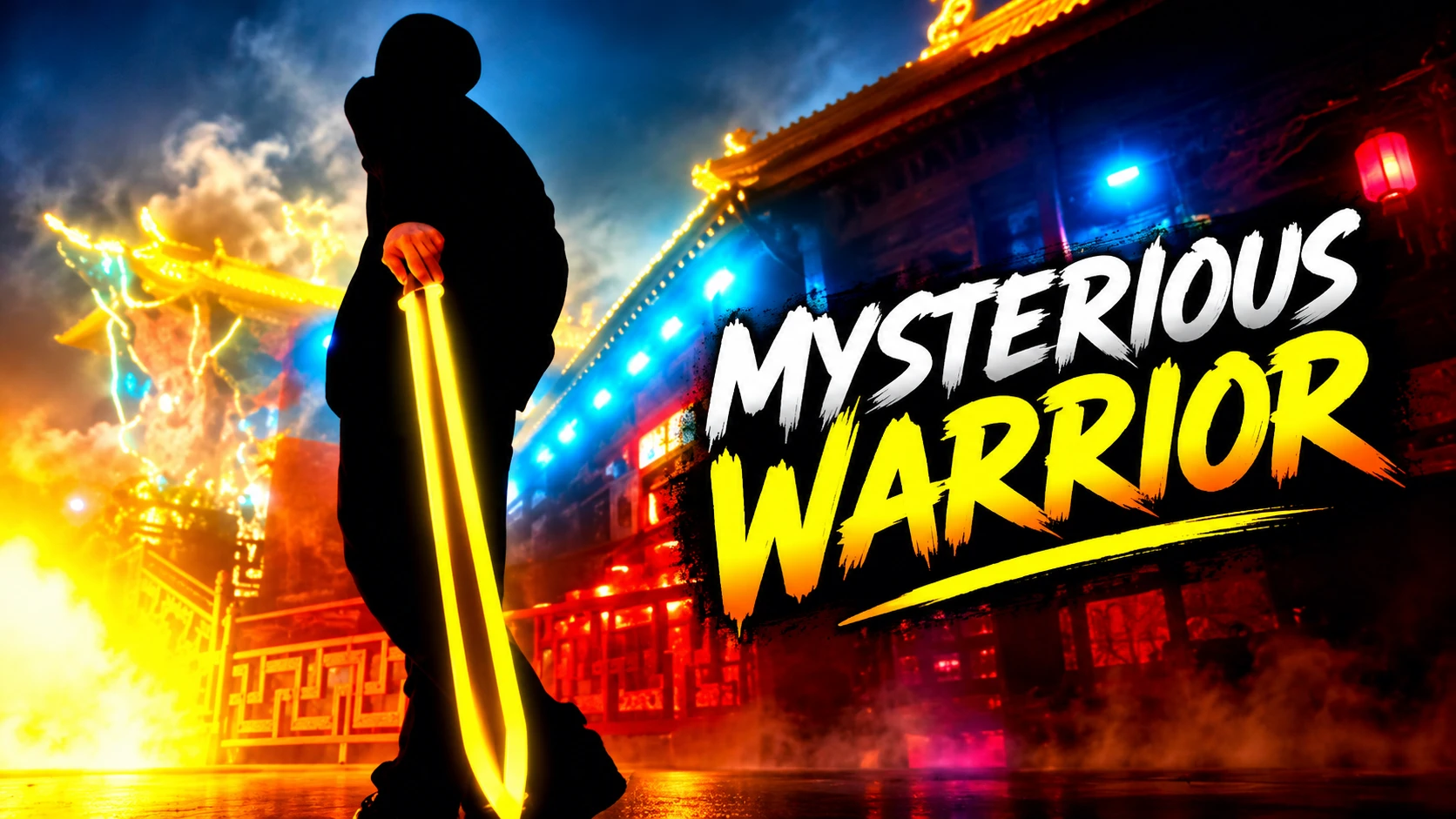
In this guide, you will learn how to create a mysterious warrior video using a thumbnail featuring a hooded character, a glowing yellow blade, colorful temple lights, and a dramatic background.
Whether you are a beginner, a content creator, or a YouTube video editor, these steps can help you create an exciting video for your social media channels.
What Makes the Mysterious Warrior Thumbnail Special?
The thumbnail features a mysterious hooded character holding a glowing yellow blade in a dramatic nighttime environment. The combination of blue neon lights, orange flames, and dark shadows creates a cinematic atmosphere.
These visual elements make the image suitable for an action-fantasy video, a short cinematic edit, or a creative storytelling project.
You can use the original thumbnail as the starting point for your video.
Step 1: Choose an AI Image-to-Video Tool
The first step is to select an image-to-video tool that supports uploading an image and generating motion from it.
Depending on the tool, you may be able to animate the character, create moving background lights, add atmospheric smoke, or introduce cinematic camera movements.
Choose a tool that offers the video duration, aspect ratio, and export quality you need.
Step 2: Upload Your Thumbnail
Open your selected AI video generator and look for its image-to-video feature.
Upload the Mysterious Warrior thumbnail as your starting image. If the tool supports a reference image, use it to help maintain the original character design, glowing blade, and background atmosphere.
For a YouTube video, consider a 16:9 landscape format. For TikTok, YouTube Shorts, or Instagram Reels, a 9:16 vertical version may be more suitable.
Step 3: Use a Cinematic Animation Prompt
A detailed prompt can help guide the AI toward the desired visual style.
You can start with this example:
AI Video Prompt:
“Animate this mysterious warrior thumbnail into a cinematic dark-fantasy video. Keep the hooded character and glowing yellow blade visually consistent with the original image. Add slow cinematic camera movement, subtle drifting smoke, glowing blue and orange lights, floating sparks, and atmospheric fog. Make the yellow blade glow naturally while the background lights flicker gently. Use dramatic shadows, realistic lighting, smooth motion, and a high-quality cinematic look. Keep the character's silhouette recognizable and avoid distorted body movements or unwanted changes to the original composition.”
Adjust the prompt according to the capabilities of your chosen tool.
Step 4: Add Motion and Visual Effects
To make the video more engaging, consider adding a few subtle effects:
Slow camera zoom: Creates a sense of suspense.
Glowing blade effect: Emphasizes the warrior's weapon.
Floating sparks: Adds movement and atmosphere.
Moving smoke: Makes the background feel more cinematic.
Flickering neon lights: Enhances the futuristic environment.
Avoid adding too many effects at once. Smooth, controlled motion often produces a more professional result.
Step 5: Add Background Music and Sound Effects
Sound design can make a short cinematic video feel more immersive.
Consider using royalty-free or properly licensed music that matches the dark-fantasy atmosphere. You can also add subtle cinematic impacts, ambient wind, or a soft energy sound for the glowing blade.
Before publishing, verify that you have the necessary rights to use your music and sound effects on your chosen platform.
Step 6: Edit and Export the Video
After generating the animation, import it into a video editor if additional editing is needed.
You can trim unnecessary frames, adjust brightness and contrast, add a title, and synchronize the visual effects with the soundtrack.
Watch the complete video before exporting it. Check for distorted movements, flickering, unwanted visual changes, and audio problems.
Export the video in a resolution and aspect ratio suitable for your intended platform.
Step 7: Publish Your Video on Social Media
Once your video is ready, you can publish it on YouTube, TikTok, Facebook Reels, or other suitable platforms.
Use a relevant title and description that accurately represent the content. If the video is AI-generated, consider disclosing that fact when appropriate or required by the platform.
For example, you could use the following title:
Mysterious Warrior | Cinematic AI Animation
You can also use relevant hashtags, such as:
#MysteriousWarrior #AIVideo #CinematicEdit #ImageToVideo #FantasyAnimation
👉👉Edit and Export the Video Tutorial
Only use hashtags that accurately describe your video.
Tips for Better Results
Here are a few practical tips to improve your final video:
Start with a clear, high-quality thumbnail.
Keep the main character and glowing blade as the visual focus.
Use short, specific animation prompts.
Generate multiple versions if your tool allows it.
Review the final video before publishing.
Use original or properly licensed music and visual assets.
Avoid misleading titles, fake claims, or effects that misrepresent the content.
Remember that results vary depending on the AI video generator, the quality of the source image, and the prompt you use.
Frequently Asked Questions
Can I turn a single thumbnail into a video?
Yes. Many AI image-to-video tools can animate a still image by generating camera movement, lighting changes, and other visual effects.
Do I need professional video-editing skills?
No. Many beginner-friendly tools provide simple interfaces for generating and editing short videos. Basic editing knowledge can still help you achieve better results.
Can I use the video on YouTube or TikTok?
Generally, yes, provided that you follow the platform's rules and have the necessary rights to the image, music, and other assets used in your video.
Can AI preserve the original character?
AI tools can attempt to maintain the original character and composition, but perfect consistency is not guaranteed. A clear prompt and careful review can help reduce unwanted changes.
Conclusion
Turning the Mysterious Warrior thumbnail into a cinematic video is a creative way to explore AI-powered animation. With the right image-to-video tool, a detailed prompt, subtle motion effects, and suitable sound design, you can transform a static image into an engaging visual experience.
Start with the original thumbnail, experiment with different animation styles, and choose the version that best matches your creative vision.
Create something unique, keep experimenting, and bring your ideas to life.